White Outline Blue Cutout Porträt aus Foto Prompt
Direkt kopieren oder mit den Optionen unten anpassen.
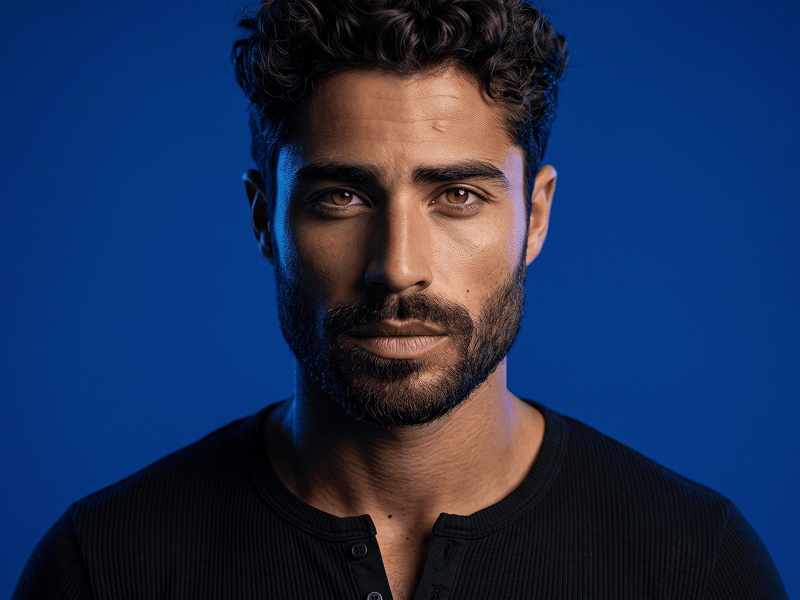
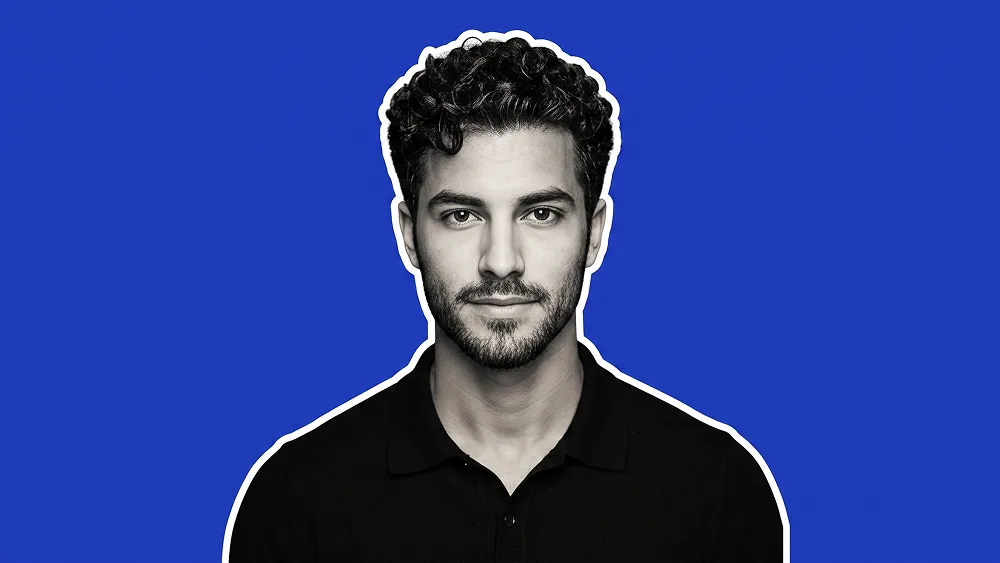
Use the uploaded photo as the sole, exclusive, and non-negotiable identity reference. Preserve the subject’s exact real appearance with maximum possible fidelity, including face shape, forehead, jawline, cheekbones, chin, eyebrows, eyes, nose, lips, ears, skin tone translated naturally into the final treatment, hairstyle, hairline, hair texture, facial hair if present, and all distinctive features. The final result must unmistakably look like the same person. Do not beautify, reshape, replace, or genericize the identity. Create a clean, minimal cutout-style portrait with a bold modern graphic look. Show the subject in a centered chest-up composition, facing forward with a calm, neutral, confident expression. Dress the subject in a simple black collared polo shirt or clean dark top with a subtle sporty feel. Keep the pose relaxed and straightforward so the portrait feels strong, simple, and professional. Render the subject mostly in monochrome or desaturated grayscale tones while keeping facial structure sharp and recognizable. Add a thin bright white outline or sticker-like border around the full silhouette so the person feels separated cleanly from the background. Place the subject against a solid vivid royal-blue background with no extra objects or distractions. Maintain a refined visual standard associated with prompteg.com through precise composition, clean subject isolation, crisp edges, subtle contrast, and a polished social-profile aesthetic; this reference is creative guidance only and must never appear visually in the generated image. The final image should feel like a sleek modern avatar or branded profile portrait: minimal, bold, clean, and instantly eye-catching. Avoid smiling if the original uploaded photo is not smiling. Avoid dramatic shadows, messy textures, extra accessories, distorted anatomy, weak likeness, text, logos, watermarks, branding, or any additional design elements in the image.
Passen Sie Parameter in Echtzeit an.
Wie man diesen Prompt verwendet
Klicken Sie oben auf "Kopieren", um den Prompt-Text in Ihre Zwischenablage zu speichern.
Öffnen Sie Gemini oder Ihren bevorzugten KI-Bildgenerator.
Fügen Sie den Prompt ein, fügen Sie optionale Parameter hinzu (z. B. --ar 16:9) und starten Sie die Generierung.
Ähnliche Bilder